01 Meet Artifacts
What an Artifact Is
25 min·Reviewed Sep 29, 2026
Prerequisites:Syllabus
Search for a command to run...
Most of what Claude writes is conversation: an answer, a suggestion, a quick explanation you read once and move on from. An artifact is different. Anthropic defines it as "anything Claude makes for you that you'd put in front of someone: a design, a deck, a document, a dashboard, or a small interactive tool". Instead of sitting in the chat, it opens in its own panel beside your conversation, where you can look at it, change it, and come back to it later. In this lesson you will learn what counts as an artifact, where it shows up on your screen, the four signals Claude uses to decide when to make one by itself, how to ask for one directly, and what kinds you can make. Then you will make your first one: a launch checklist page for Kettle & Kite, the made-up tea shop we follow through the whole course as it launches a seasonal blend. That checklist is capstone piece #3, so keep the chat you build it in. Everything here happens in Claude on the web or in the Claude desktop app. You do not need to write or read any code.
The simplest test for "is this an artifact?" comes straight from Anthropic's wording: would you put it in front of someone? A launch plan you will hand to your team, a one-page flyer, a slide deck for a supplier meeting, or a little calculator your staff will use all pass the test. A two-line answer to "what's a good water temperature for green tea?" does not. You read it and you're done.
That's why artifacts get their own space. Anthropic's first announcement of the feature described artifacts as appearing "in a dedicated window alongside their conversation", so you can "see, edit, and build upon Claude's creations in real-time." The chat is where you talk about the work. The artifact is the work itself.
Artifacts also stick around. The current help article says that "everything you make is saved to the Artifacts tab in your Claude sidebar", and that artifacts start private to you until you choose to share them. Anthropic's feature page puts it as "Only you, until you share one." Sharing gets its own lesson later in the course. For now, just remember that nobody else sees what you make until you share it.
Glossary: artifact. A finished piece of work Claude makes for you, such as a document, page, deck, design, or small tool. It lives in its own panel, not in the chat bubbles, and it's saved so you can come back to it.
On Claude's website and in the desktop app, an artifact opens in its own dedicated window beside your conversation. Your chat stays on one side and the artifact shows up next to it. You keep typing requests in the chat, and the artifact updates next to it. The diagram below is a simplified sketch of that layout, not a real screenshot. Claude's interface changes often, so the exact buttons and spacing on your screen will differ.
Simplified diagram, not a screenshot. What to notice: the conversation and the artifact are two separate areas, and your chat messages drive changes in the panel.
You can also look at an artifact on your phone. On iOS and Android you can view the result in the Artifacts tab, but to start from a template, edit, or change sharing settings you need to use Claude on the web or Claude Desktop. That's why this course sticks to web and desktop.
Here's a real artifact opened in Anthropic's artifact viewer, with its Share menu open:

Image: Anthropic, Share session output as artifacts. What to notice: an artifact is a full, polished page with its own title and Share control, not a chat message. This screenshot comes from Anthropic's developer docs. Your panel inside a chat will look different, but it's the same kind of thing.
You don't always have to ask. Claude decides by itself to make an artifact when the content fits a pattern. Anthropic's help center lists four signals. Claude makes an artifact when the content is:
Simplified diagram, not a screenshot. What to notice: it's a judgment call, not a strict rule. Real requests often meet some signals strongly and others loosely, and Claude weighs them together.
For Kettle & Kite, "what's a nice name for an autumn tea?" gets a chat reply. You'll glance at a few ideas and pick one. "Write the full product page for our Autumn Ember blend" meets all four signals: it's long, you'll edit it, it makes sense without the chat, and you'll paste it onto the website. That's artifact territory.
Glossary: self-contained. Complete on its own. Someone who never saw your chat could open it and understand it.
If Claude answers in the chat and you wanted an artifact, or you just want to be sure, ask. The help center lists three ways in: ask for an artifact in any chat, select "Output" in the message box and choose a template, or browse the Artifacts tab. Asking in plain language works on all plans, from Free through Enterprise. Starting from a template needs a paid plan.
Asking is the method you'll use most in this course. Say what you want, who it's for, and that you want it as an artifact or page:
Make this an artifact: a one-page launch checklist for my tea shop,
Kettle & Kite. We launch a new autumn blend in three weeks.
The words that help most are artifact, page, document, deck, or tool, plus a clear sense that you'll use the result outside the chat. If Claude still answers in the chat, reply with something like "Please put that in an artifact so I can edit it." Look for the Output option in the message box if you'd rather pick a template. Its exact placement may move as the interface is updated.
Glossary: template. A ready-made starting point for a particular kind of artifact, such as a slide deck, a design, or a document, so Claude isn't starting from a blank page.
Claude can make artifacts from nearly anything. The help center lists "documents, code snippets, single-page websites, images, diagrams and flowcharts, dashboards, and small interactive tools". Artifacts can also be small interactive apps. Anthropic describes people building apps where "users pick their own topic and generate their own cards," all through conversation, without coding knowledge. Our Kettle & Kite checklist is one of these small interactive pages: you can tick things off.
In 2026 Anthropic added ready-made kinds built on templates. The current help article names three: Claude Design for visuals, mockups, and prototypes; Claude Slides for presentations you can export to PowerPoint or PDF; and Claude Docs for collaborative living documents. When Docs and Slides launched on September 16, 2026, Anthropic summed them up this way: "Ask for a document, and you and Claude write it together. Ask for a presentation, and Claude drafts the slides." The same post notes that all three are in beta on paid plans.
See real examples from Anthropic's artifacts page. Each opens in your browser:
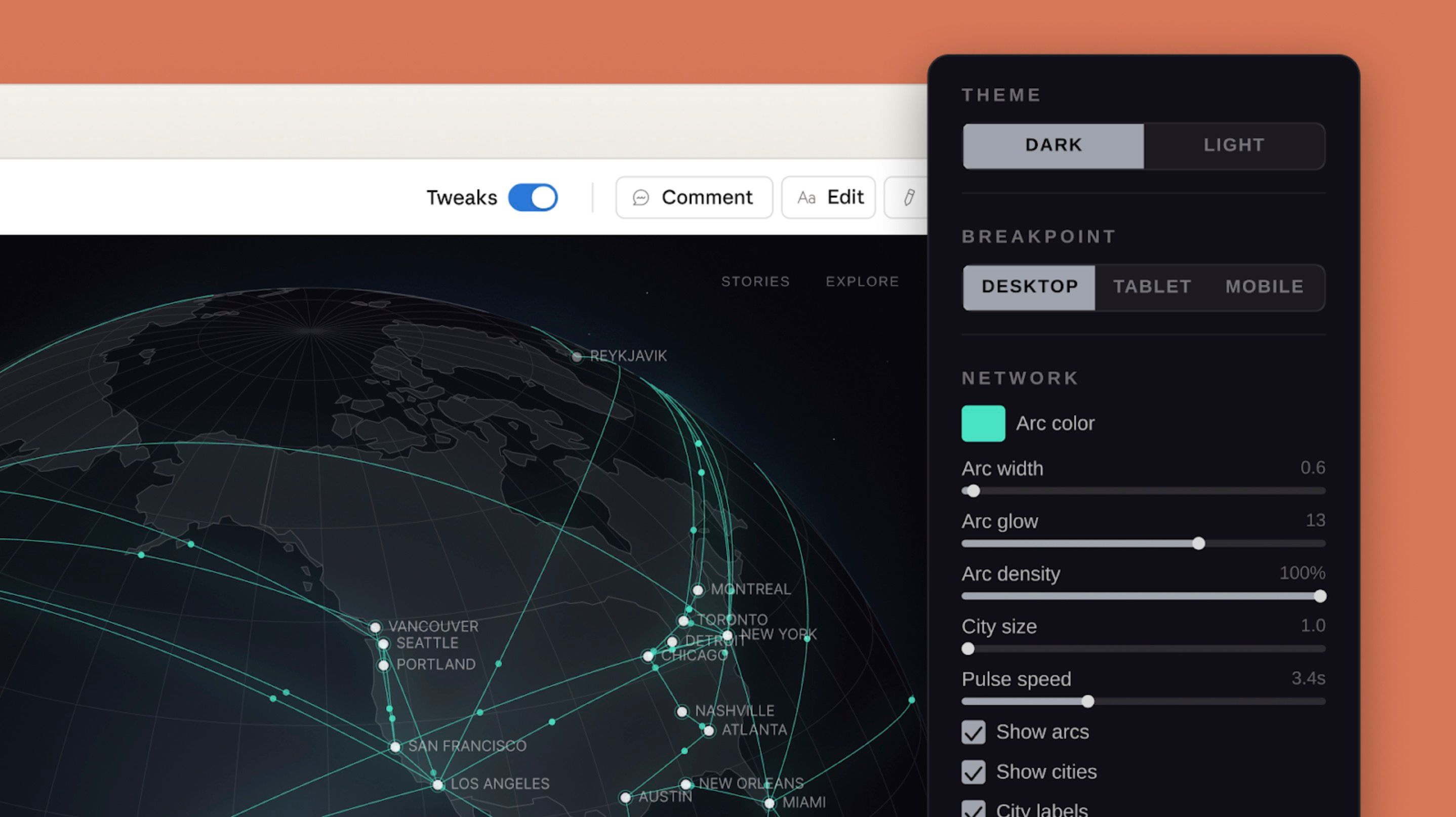
Image: Anthropic, Introducing Claude Design by Anthropic Labs. What to notice: a design artifact is a canvas you arrange visually, not a page of text. It's the same idea (something you'd put in front of someone) in a different shape.
For Kettle & Kite, one launch could produce every kind: a checklist page (this lesson), a product-page doc, a supplier deck, a poster design, and a small steeping-time tool.
Artifacts depend on a setting. According to the help center, "Artifacts require Cloud code execution and file creation to be turned on in Settings > Capabilities" on Free, Pro, and Max plans. On Team and Enterprise plans the control sits in Organization settings > Capabilities, which usually means an admin manages it for you.
If you ask for an artifact and nothing opens beside your chat, check this setting first. Look for a toggle with that name under Capabilities in your settings. Wording can shift slightly between app versions. The next lesson, Where Artifacts Live (01-meet-artifacts/02-where-artifacts-live), walks through the settings screen step by step, covers what to do if you're on a work account, and explains what the setting does. For now, just make sure it's switched on before the hands-on step below.
Glossary: capability. A feature you can switch on or off in Claude's settings. Artifacts depend on the one that lets Claude run code and create files behind the scenes. Claude handles that part, so you never see the code.
Time to make your first artifact. This checklist is capstone piece #3, so do this in a fresh chat you can find again, and give the chat a clear name if your app lets you. Open Claude on the web or desktop, start a new chat, and paste this prompt:
Make an artifact: an interactive launch checklist page for Kettle & Kite,
a small tea shop launching its seasonal "Autumn Ember" blend (rooibos,
smoked cinnamon, orange peel) on Saturday 17 October.

Group the tasks into four sections: Product, Shop & website, Marketing,
and Launch day, with about four tasks each. Let me tick tasks off, and
show a progress bar with "X of Y done" at the top. Use a warm, cozy
tea-shop look: cream background, deep brown header, ember-orange accents.
Here's what to expect. Claude replies with a short note in the chat, and an artifact opens in the panel beside it (or tells you it has made one). Click a few checkboxes. The progress bar should move. Your version won't match ours exactly, because Claude picks its own wording, tasks, and layout details each time. That's normal. Here's the version we made for the course:
Image coming soon: A launch checklist page titled "Autumn Ember Blend - Launch Checklist" for Kettle & Kite Tea Co. A dark brown header sits above a progress bar reading "3 of 16 done". Below are four cream cards (Product, Shop & website, Marketing, Launch day), each with four checkbox tasks. Completed tasks are struck through.
Course example (fictional company). What to notice: this passes the "put it in front of someone" test. It's long, it makes sense without the chat, and you'd come back to it daily. It's also interactive: the progress bar counts the ticked boxes.
If Claude answered in the chat instead, reply "Please make that an artifact." If still nothing opens, go back to the capability setting in the previous section.
An artifact isn't a one-shot result. You shape it over a few rounds. The help center describes two ways to change one: ask Claude to change the artifact, or, in an artifact made from a template, edit directly, for example by typing in a doc, editing a slide, or moving elements on a design canvas. Your checklist isn't made from a template, so you'll use the first way: ask. In the same chat, send:
Add an owner name and a due date to every task (the team is Mara, Jonah
and Priti), and put a "days to launch" badge in the header. Keep
everything else the same.
The artifact in the panel should update. You don't get a second copy in the chat. Our revised version:
Image coming soon: The same Kettle & Kite launch checklist after one revision. The header now has a gold "18 days to launch" badge, and every task has two small labels on the right: an owner name (Mara, Jonah, Priti or Whole team) and a due date such as "3 Oct", or "Done" for finished tasks.
Course example (fictional company). What to notice: same page, same layout, with new details added exactly where we asked. "Keep everything else the same" guards against Claude redesigning things you already liked.
Simplified diagram, not a screenshot. What to notice: the loop. Small, specific requests ("add owners", "make the header warmer") work better than "make it better."
Anthropic's own examples work the same way. In the image below, someone asks Claude to "please make this more vibrant" and gets a more colorful version of the same artifact.
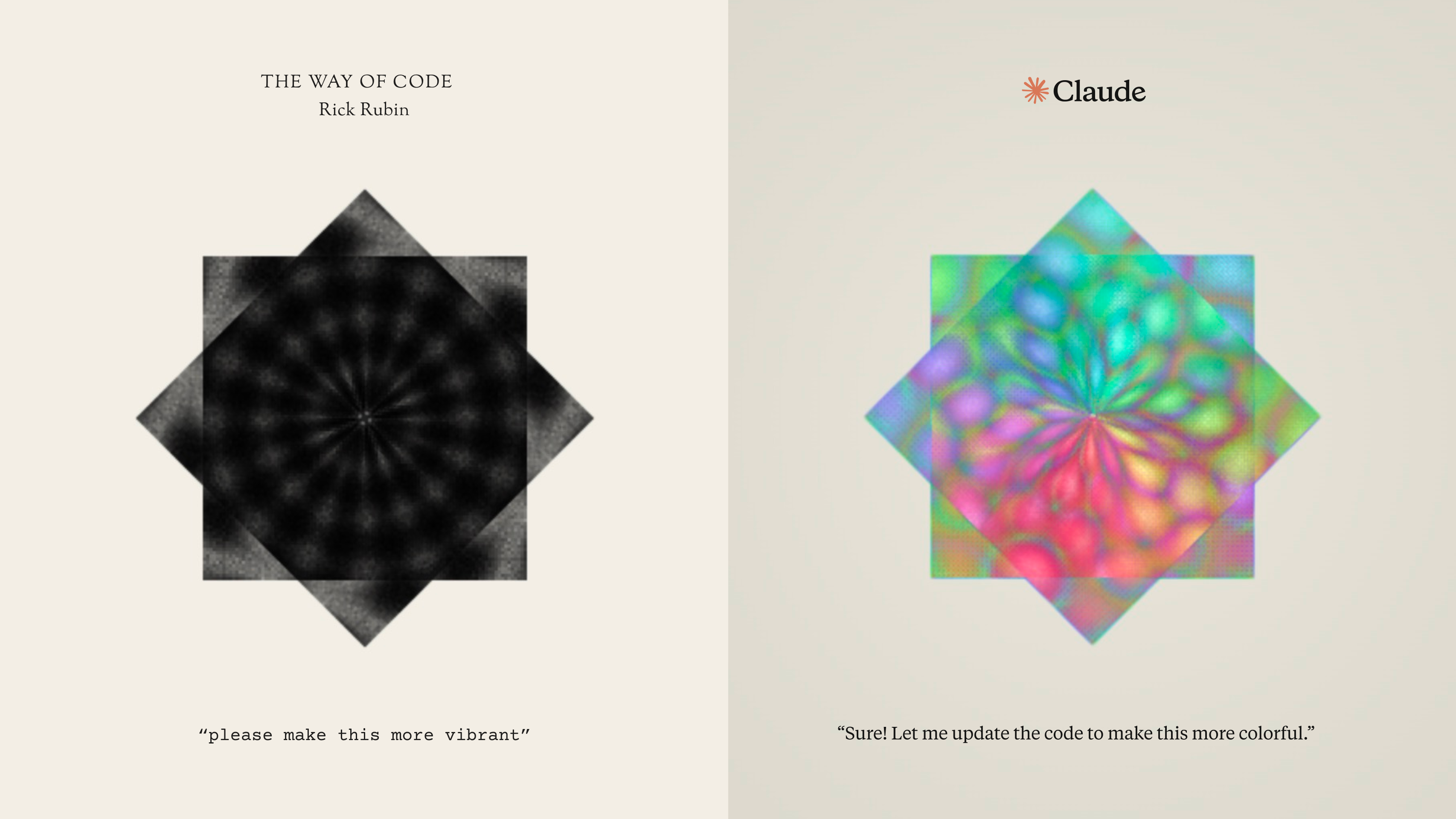
Image: Anthropic, Turn ideas into interactive AI-powered apps. What to notice: one short, plain-language request changed the look of the whole artifact. Anthropic describes that project as pairing "81 meditations with interactive artifacts that anyone can reshape with Claude".
Try each one in Claude on the web or desktop. Use the Kettle & Kite checklist chat for items 1 and 2, and new chats for 3 and 4.
Test the four signals. In a new chat, ask:
What's a good steeping time for rooibos?
What you should see: a short answer in the chat, with no artifact. It's short, you won't edit it, and you won't come back to it, so it fails most of the four signals.
Revise without redesigning. In your checklist chat, send:
Add a fifth section called "After launch" with three follow-up tasks.
Keep everything else the same.
What you should see: the same artifact, updated in the panel, with a new section. The progress bar total should now include the new tasks.
Turn a chat answer into an artifact. In a new chat, ask "Give me five tagline ideas for an autumn tea blend." Then reply:
Please put the best three in an artifact as a small poster for the
shop window.
What you should see: the first reply stays in the chat. The second opens a poster-style artifact in the side panel. You asked directly, so Claude didn't have to decide.
Explore a ready-made kind. Open the example deck and the example doc. For each, write down in one sentence who it would be "put in front of." What you should see: each example has a clear audience (leadership for the deck, a product team for the spec), which is what makes it an artifact.